
Quick answer: Paste or type your workout notes into the Translate page, then tap Translate. Gym Note Plus reads your shorthand and turns it into logged workouts you can find in the History tab. Add a date and a split name above your exercises if you want several sessions separated.
Tracking your workouts shouldn't feel like a chore. With Gym Note Plus, you can write your workout notes naturally, just like you would in a notebook, and let the app handle the rest. Here's how it works.
Step 1: Copy and Paste Your Workout Notes
Start by entering your workout notes into the app. You can either paste them in or write them directly. This could be a single workout or multiple sessions at once. If you want to try this step without installing anything, the free notes to workout translator runs the same engine right in your browser.
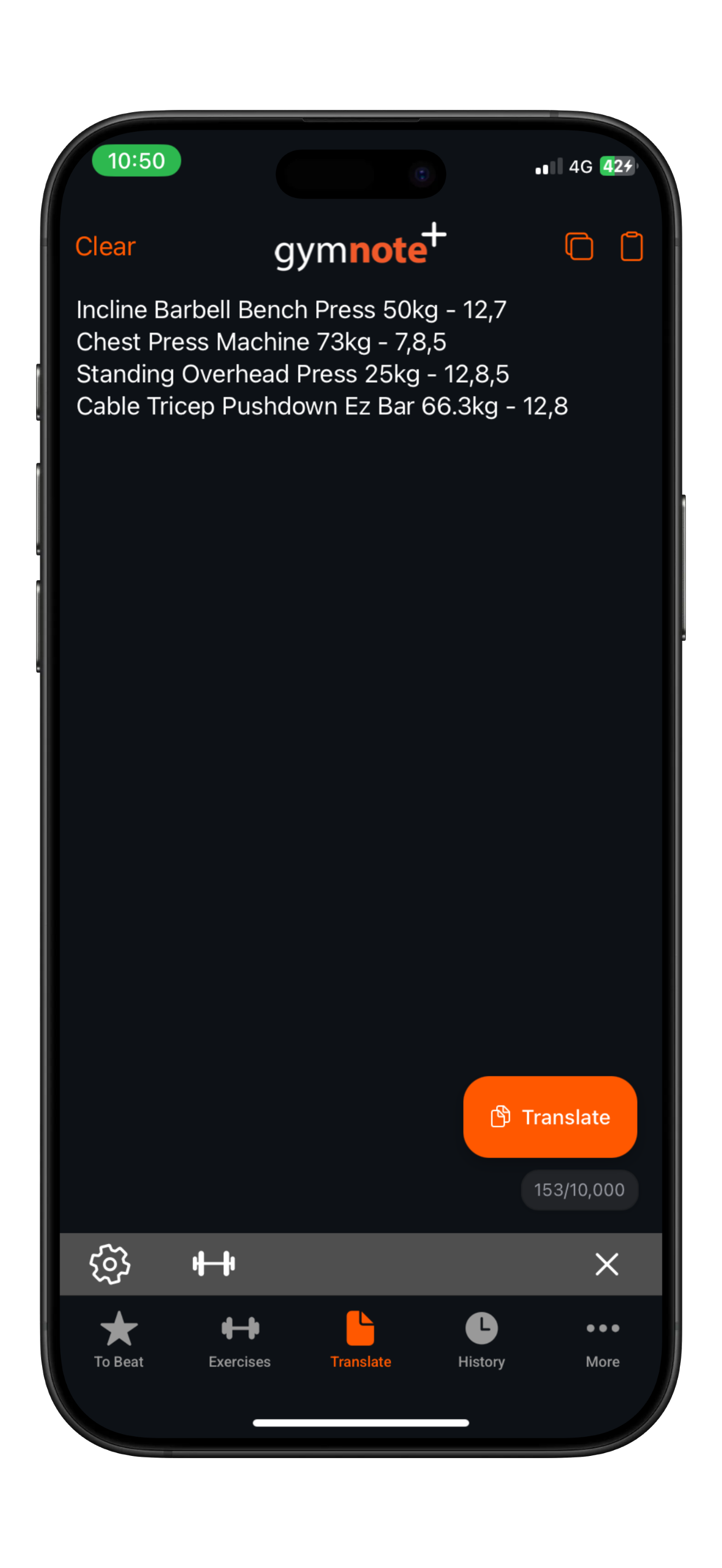
Write it how you would naturally. We'll figure out the rest. Notice how no date is added in the example above. By default, we'll assume this is today's workout.
Translating Multiple Workouts
Gym Note Plus can translate multiple workouts in one go!
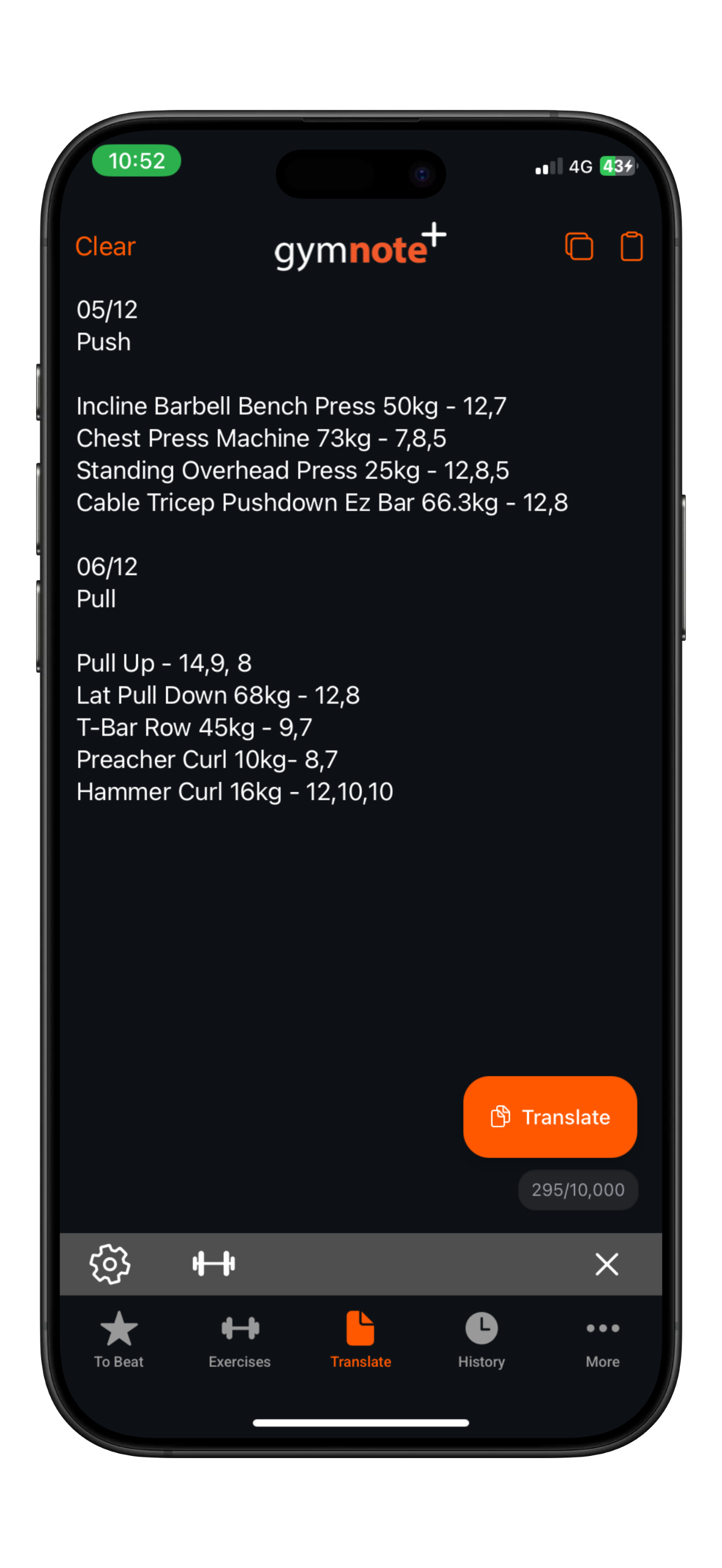
In this example, a date is provided along with a title. This helps the system track your workouts, especially if you're following a workout split. Write the date however you want. We'll figure it out. This will create 2 workout logs: one for 'Push' and one for 'Pull'.
Step 2: Click the 'Translate' Button
Once your notes are ready, hit the Translate button.
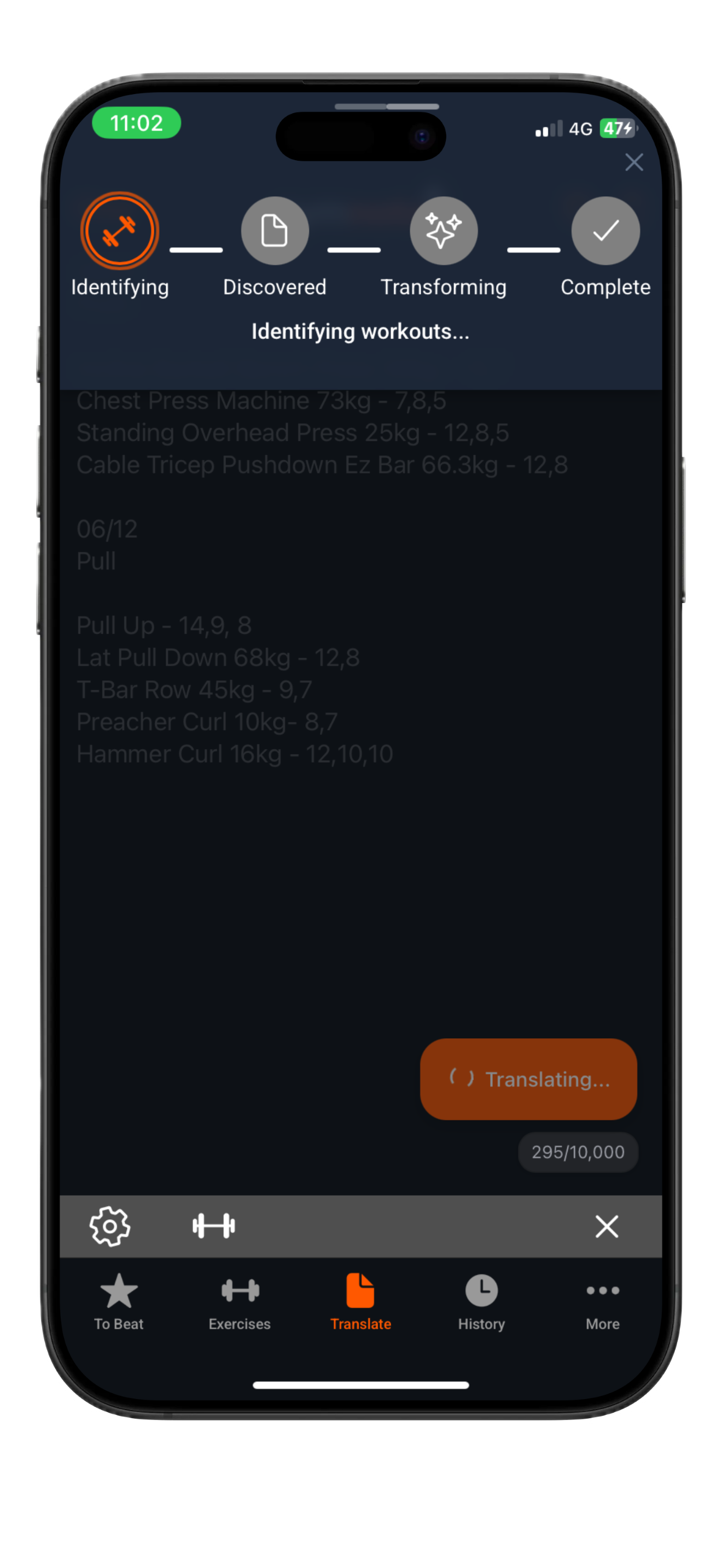
You'll notice a translation stepper appear to show you the progress of your translation in real-time.
Step 3: View Your Translation in the History Tab
Head over to the History tab to see your translated workouts.
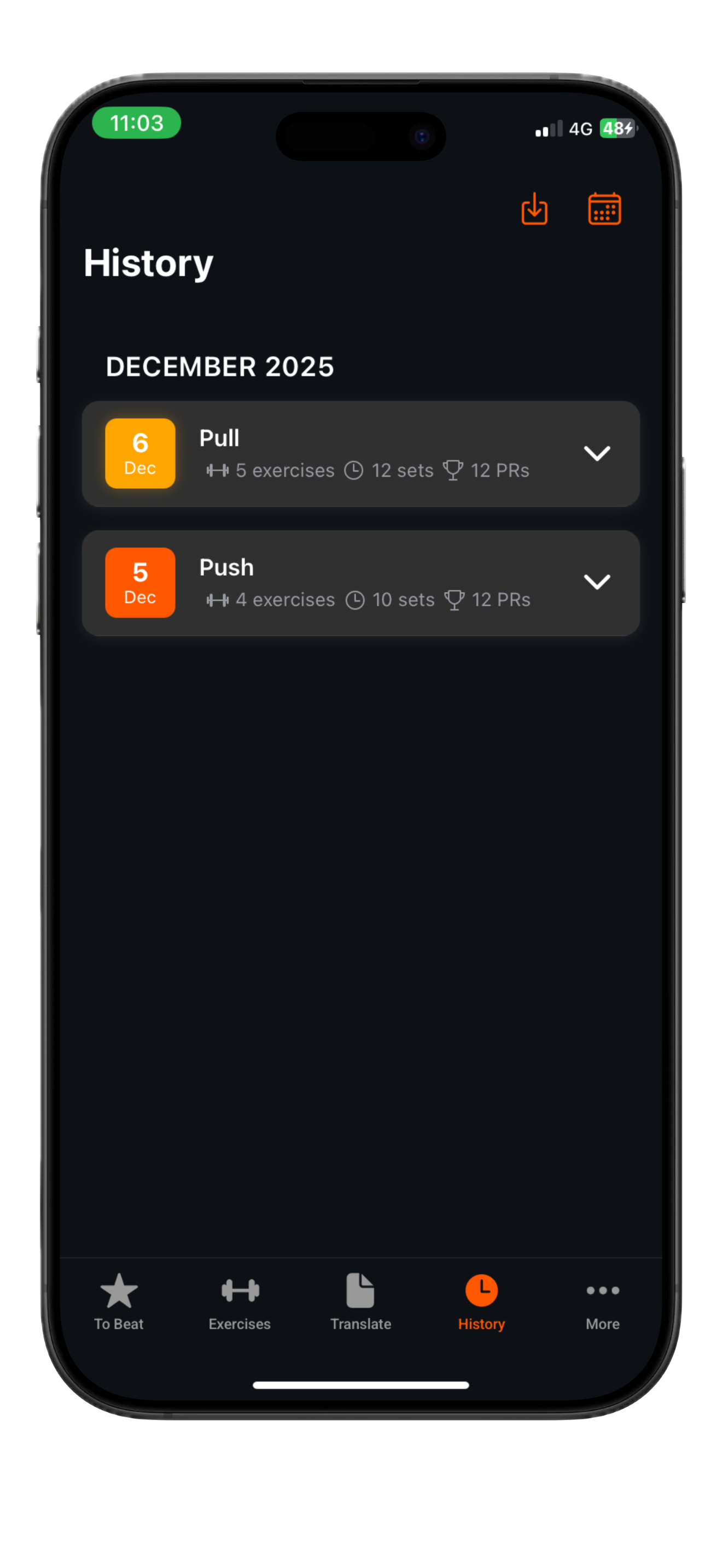
The two workouts we translated now appear as logs with the dates we entered and the workout split titles we supplied.
Tips and Tricks
Here are a few ways to get the most out of the translation feature:
- Translation not quite right? Try adding more context to your note. Include 'lbs' or 'kg', and make an obvious distinction between reps and sets.
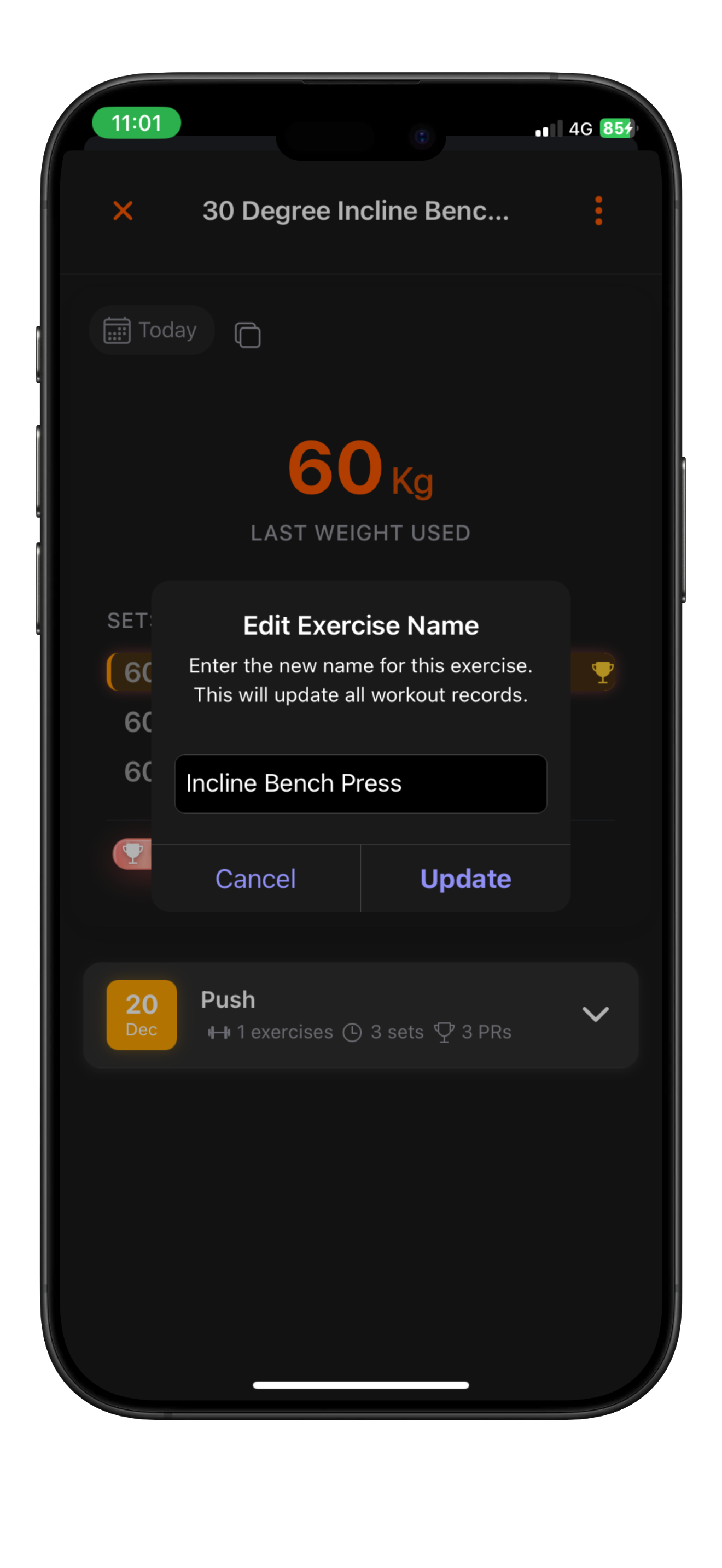
- Exercise name incorrect? Head to the Exercises page and rename the exercise to what you actually meant. Gym Note Plus will remember this and ensure your exercise name is correct next time.
- Did the workout last week but translating now? Add a date above your exercises. Write it however you want. Gym Note Plus will figure it out.
- Got more than one workout? Pro users can translate up to 10,000 characters at once. Add obvious separations between each workout, such as a date or split name like 'Push'.
Conclusion
Yep, it's that easy. Write your workouts naturally, hit translate, and let Gym Note Plus do the heavy lifting.

Josh Ibbotson
Josh is the creator of Gym Note Plus, building tools that make workout tracking as simple as taking notes.
Ready to try it out?
Download Gym Note Plus and start tracking your workouts the way you want.
Download on App Store